Prompt Management: Complete Guide to Reusable Prompts

Prompt management is the practice of treating your best prompts as reusable assets instead of throwaway messages — capturing them, structuring them, turning them into templates, retrieving them in one keystroke, and pruning the ones that stopped working. Most people stop after "save it somewhere" and then wonder why their prompt collection never gets used. After building a library of 200+ prompts across ChatGPT, Claude, and Grok, I can tell you the failure is almost never storage. It's retrieval.

TL;DR
Prompt management has five stages: capture, structure, templatize, retrieve, maintain. A system that only does the first two dies quietly — you save prompts and never find them again. What keeps a library alive is retrieval that costs one keystroke and templates that ask you for the missing details instead of making you edit raw text. This guide covers all five stages, the typed-variable syntax that turns a static prompt into a small form, prompt chains for multi-step work, and the five mistakes that kill most libraries in month two.
What is prompt management?
Prompt management is the operational layer around your prompts: how they get saved, organized, parameterized, found, and retired. It answers a different question than prompt engineering does. Prompt engineering asks "how do I word this well?" Prompt management asks "what happens to that wording after it works?"
That distinction matters more than it sounds. Both OpenAI and Anthropic publish long, genuinely useful prompt engineering guides. Neither tells you what to do with the prompt an hour later, when you need it again and it's buried on message 340 of a conversation you can't remember the name of. That gap is the whole subject of this page.
A complete prompt management system has five moving parts:
- Capture — getting a prompt out of a chat and into storage before you forget it existed.
- Structure — folders, tags, and favorites so the collection has a shape.
- Templatize — replacing the parts that change with variables, so one prompt serves fifty jobs.
- Retrieve — getting the right prompt back into the composer without breaking your train of thought.
- Maintain — tracking what you actually use, pruning what you don't, and backing the whole thing up.
Why prompt management matters more than it did a year ago
Three things changed. The first is volume: people who use AI daily now run the same twenty-odd tasks over and over — summarize this call, rewrite this in our tone, extract action items, draft the client update. Rewriting the instructions each time is a small tax paid dozens of times a week.
The second is consistency. When you retype a prompt from memory, you get a slightly different prompt, and therefore a slightly different output. That variance is invisible until you're comparing two client deliverables that should have read the same way and don't.
The third is agents. When a model works unattended for an hour, the prompt stops being a message and becomes a specification — and a vague spec now costs you an hour of wrong output instead of ten seconds. We wrote about that shift in what OpenAI's agent means for how you work. Short version: the better your prompts run without you, the more it matters that the good ones are findable.
The five stages of prompt management
Here's the lifecycle as a whole. It runs in order, and it loops — what you learn in maintenance changes what you bother capturing next.
Stage 1: Capture
The best prompt you ever wrote was almost certainly typed in a hurry, worked beautifully, and was never saved. Capture is the stage that fixes that, and it fails for a boring reason: at the moment a prompt works, you're busy reading the answer, not filing paperwork.
So the capture step has to be nearly free. In AI Workspace Pro, prompts you send are picked up automatically into a Recent prompts list — mine sits at 47 — and saving one into the library is a single action rather than a copy, a tab switch, and a paste. The trick isn't discipline. It's removing the tab switch.
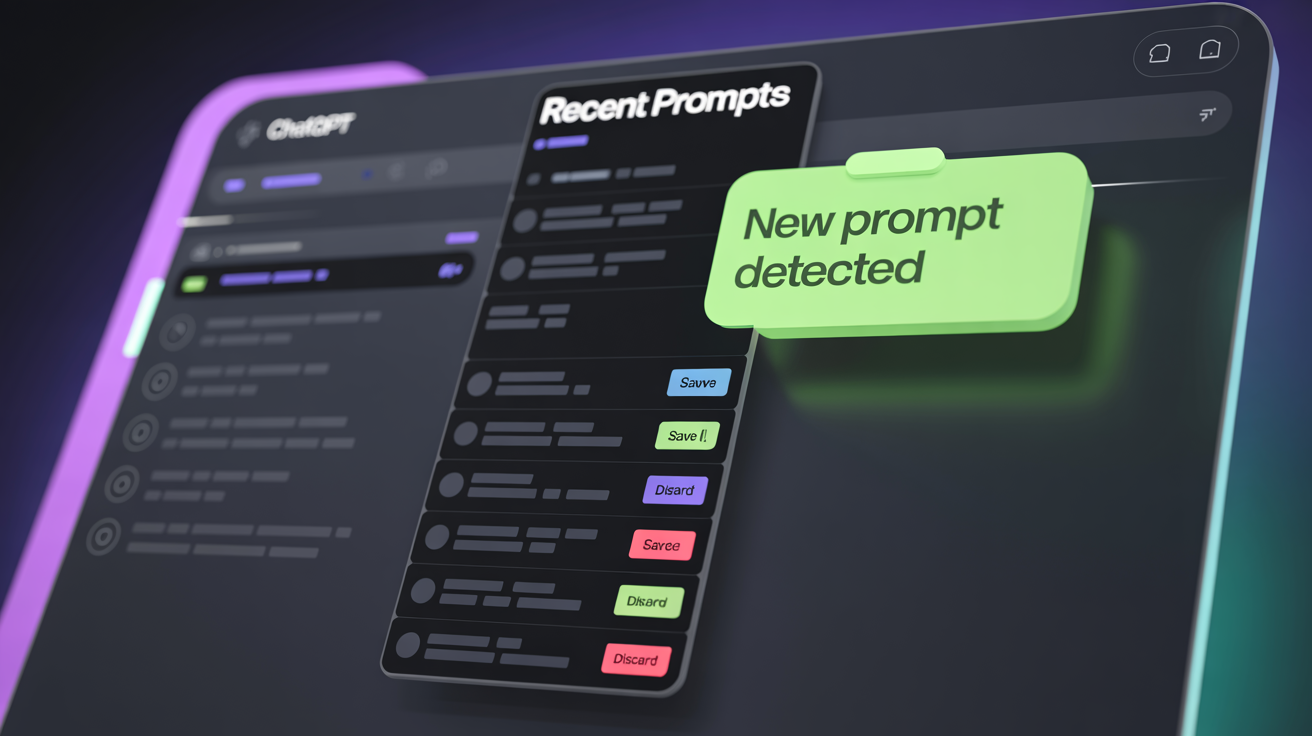
Capture works when it costs one click, not one workflow.
Stage 2: Structure
Structure is where most guides start and where most people over-engineer. The rule that has held up for me: group by the job the prompt does, not the topic it's about. Summarize, Rewrite, Generate, Analyze, Extract. Job-based folders don't overlap, so you never have to decide whether a prompt belongs in "Marketing" or "Client A".
Topic then lives in tags, which can stack — a prompt can be tagged client-a and tested at once without living in two places. Favorites and pinning handle the top of the pyramid: the four or five prompts you run daily should never require a search. Our guide to building a prompt library from scratch walks through this stage step by step if you're starting from a pile of notes.
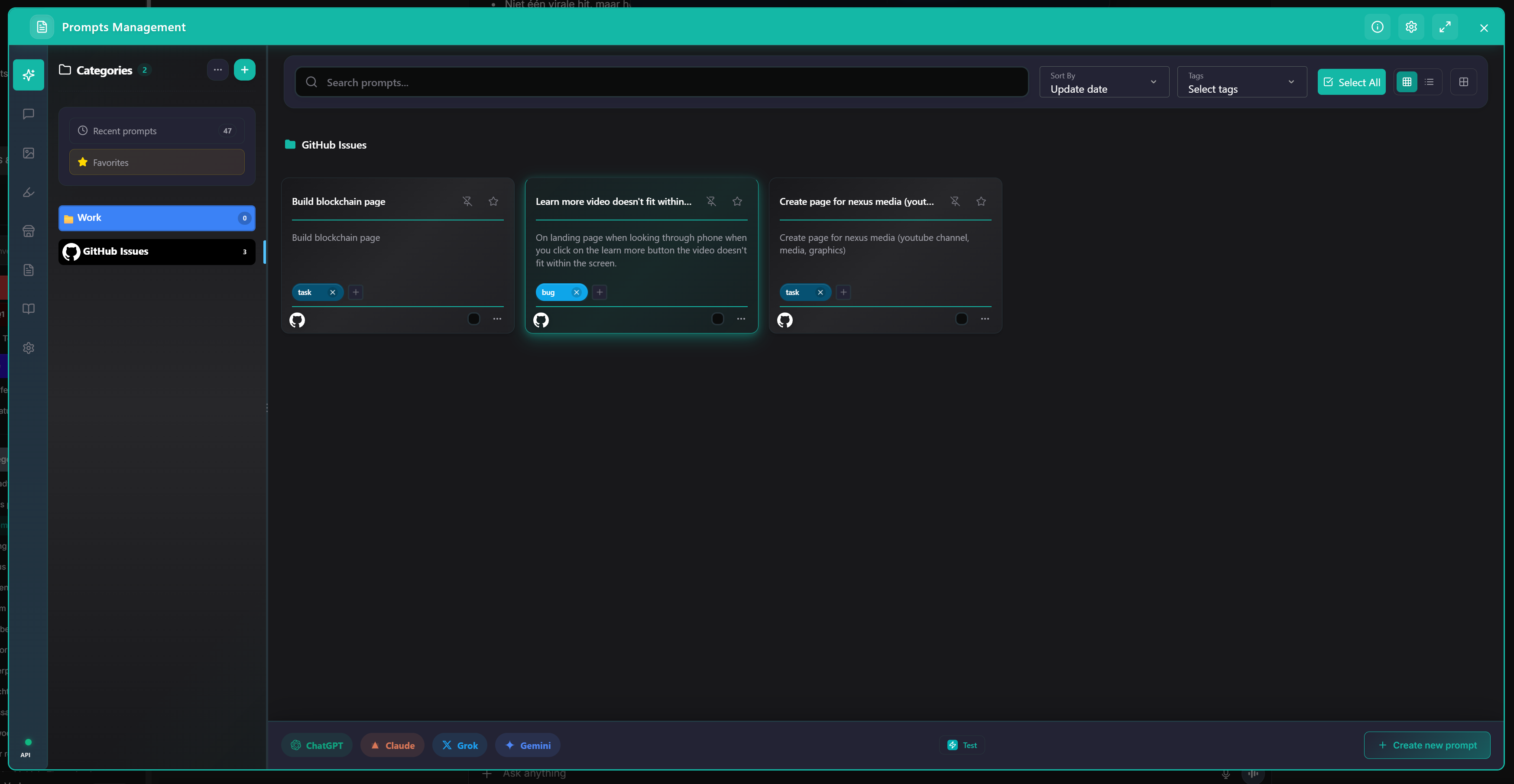
Categories on the left, tags on the cards, search across everything.
Stage 3: Templatize
A saved prompt is a snapshot. A template is a tool. The difference is that a template names the parts that change — the topic, the audience, the tone, the word count — so you fill in the blanks instead of hunting through a paragraph for the three words you need to swap. This is the stage that turns twelve near-identical prompts into one. It gets its own section below, because the syntax goes further than most people expect.
Stage 4: Retrieve
Here's the stage that decides whether any of this survives. If getting a prompt back means opening another tab, scrolling a document, and pasting, you will do it for about two weeks. Then you'll type the prompt from memory again, badly, and your library becomes an archive of things you used to do.
Retrieval has to happen inside the composer. Typing / in the chat input opens a searchable list of your saved prompts and inserts the one you pick — no tab switch, no clipboard. That single keystroke is, in my experience, the difference between a library that compounds and one that quietly rots.
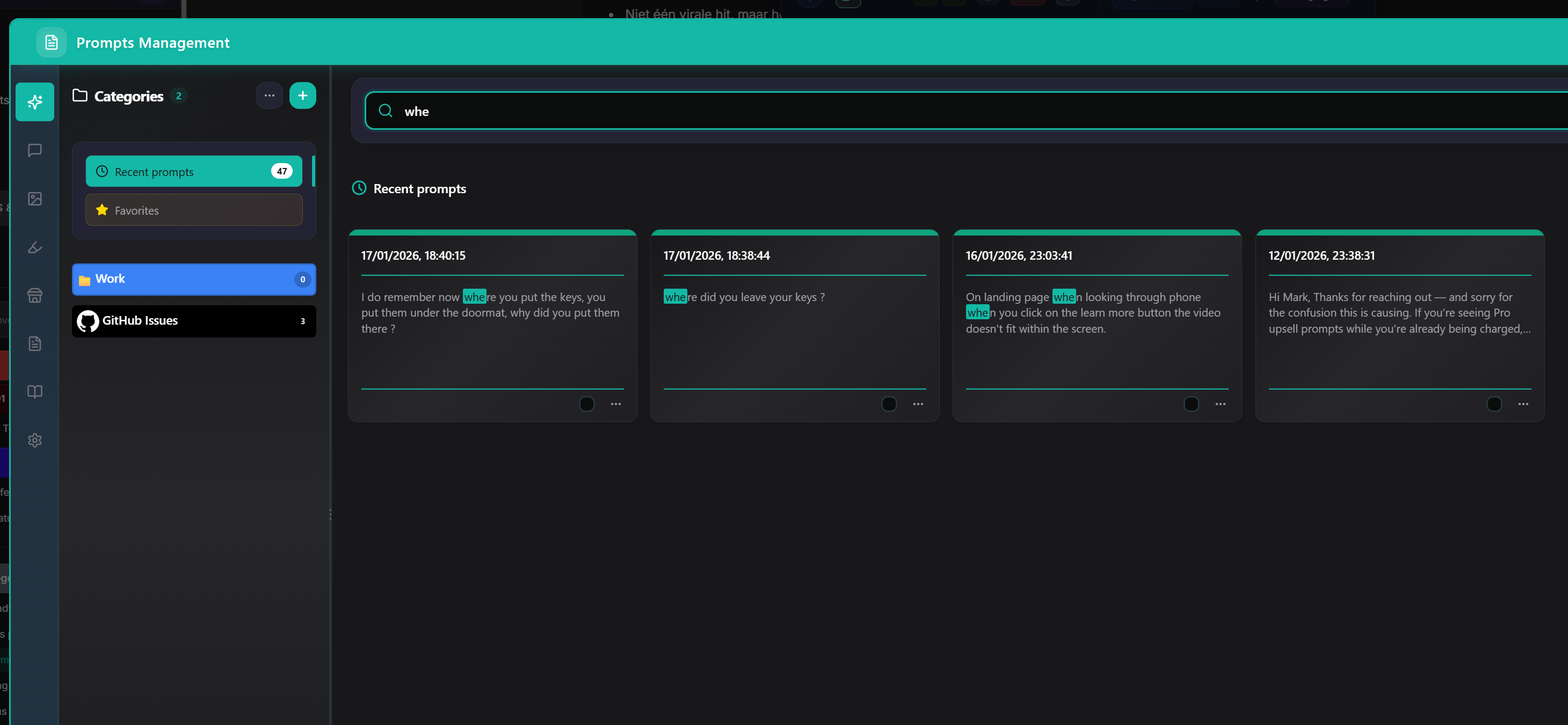
Full-text search plus tag filters, for when you remember the content but not the name.
Stage 5: Maintain
Prompts decay. Models change, your projects change, and a prompt tuned for last year's writing style produces something slightly off today. Maintenance means three habits: check prompt history to see what you actually reach for, archive anything untouched for a quarter, and export the library to JSON or CSV so a browser reset never costs you a year of work.
That last one matters more than it seems. A prompt library that lives only in one browser profile is one wiped extension away from gone.
How to set up prompt management step by step
Concretely, this is the sequence I'd run for someone starting today. It takes about half an hour and you can do it inside ChatGPT without touching another app.
- 1. Harvest what already works. Go through your recent prompts and save only the ones you have sent more than once. Ten real prompts beat a hundred aspirational ones.
- 2. Create five job-based folders. Summarize, Rewrite, Generate, Analyze, Extract. Resist adding a sixth on day one.
- 3. Tag for context. Client, project, and status tags such as tested or draft. Tags are cheap; folders are expensive.
- 4. Turn your top five into templates. Find the words you retype every time and make them variables. Details in the next section.
- 5. Pin the daily drivers. Whatever you run every morning goes to the top of the list, favorited.
- 6. Export once you're happy. JSON or CSV, stored wherever your other backups live.
If you're setting this up for the first time, our beginner's walkthrough covers the install and first-run steps, and the prompt library feature page shows the full interface.
Prompt templates: from a placeholder to a small form
Most tools that support prompt templates support exactly one thing: a placeholder like {{topic}} that you replace on insertion. That's useful, and it's also where nearly every guide on the subject stops.
It goes considerably further than that. Variables can be typed — meaning the prompt doesn't just ask for a value, it asks for the right kind of value, with the right control. When you insert the prompt, you get a small form instead of a text box:
| Syntax | What you get on insertion |
|---|---|
| {{name}} | A required text field — the default behavior |
| {{extra_info?}} | An optional field (the ? makes it skippable) |
| {{language:dropdown(Dutch, English, French, default=English)}} | A dropdown with a preselected value |
| {{amount:slider(1, 10)}} | A slider — good for length, tone strength, number of ideas |
| {{date:date}} | A date picker instead of a typed date string |
| {{show_result:checkbox}} | A checkbox for on/off instructions |
| {{motivation*::Briefly describe your motivation}} | A required field with placeholder text to guide you |
| {{email?:input:/regex/:Enter a valid email}} | An input validated against a pattern before it's accepted |
| {{extra?:if(language=English)::...}} | A field that only appears when another answer calls for it |
| {{experiences[]:{company, position, duration}}} | A repeater — add as many entries as you need |
| {{cv:file}} | A file upload attached as part of the prompt |
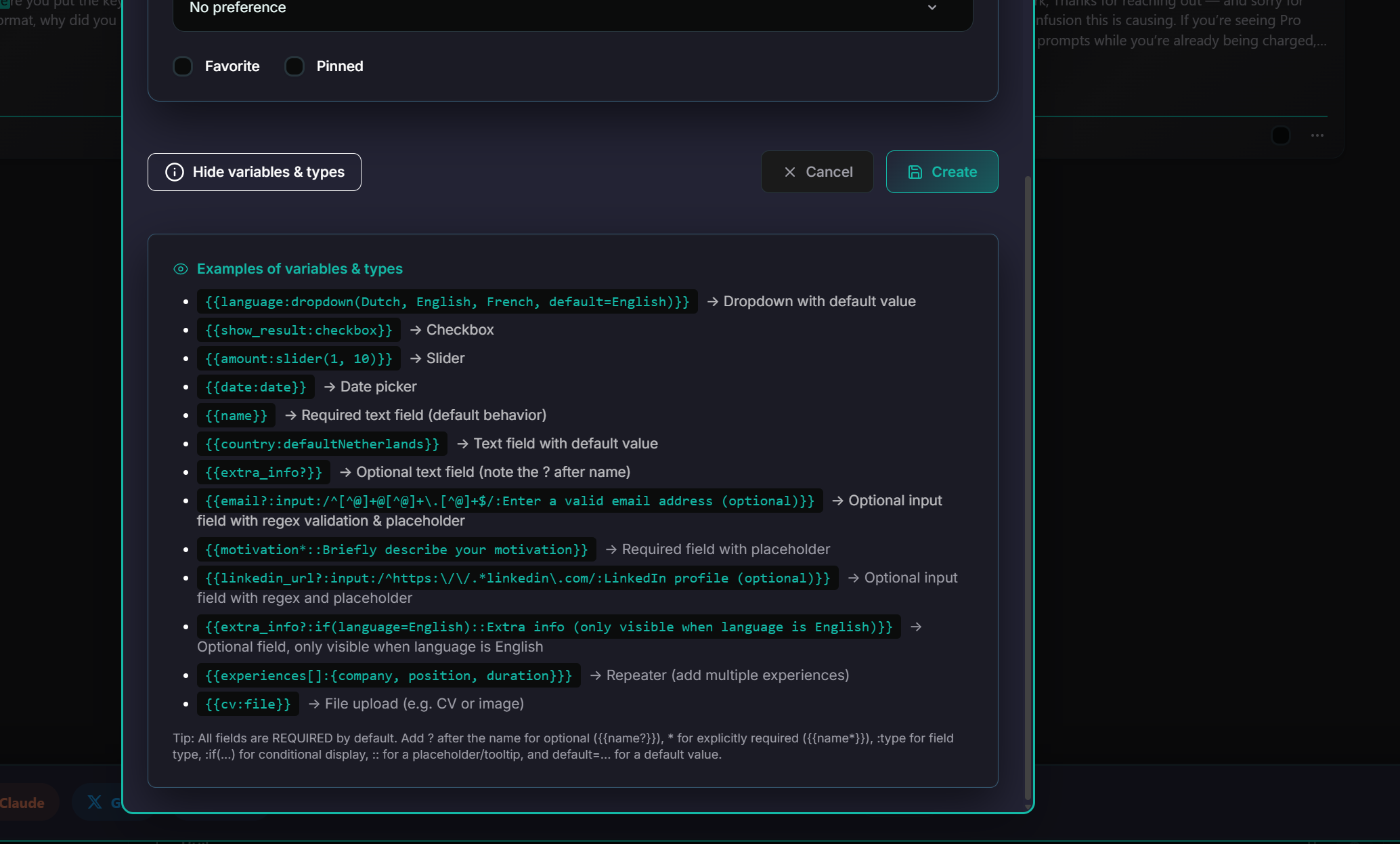
The built-in reference for variable types, shown while you write the template.
Why bother with types at all? Because a plain text placeholder still lets you make mistakes — a typo'd language, a date in the wrong format, an empty field you meant to fill. A dropdown can't be misspelled. A conditional field can't be answered when it doesn't apply. The template stops being a fill-in-the-blank exercise and starts behaving like a small internal tool, which is exactly what you want when you hand it to a colleague.
Quick aside: if your draft prompt is messy to begin with, no amount of variables will save it. The prompt optimizer rewrites a draft into a clearer version and shows the original and the rewrite side by side — and it leaves your {{variables}}, placeholders, and code blocks intact, which matters once your templates get elaborate. It'll also tell you when a prompt is already fine, which I appreciate more than I expected to.
Prompt chains: when one prompt isn't the unit of work
Some jobs are never one prompt. Writing an article is research, then outline, then draft, then edit. Handling a support ticket is classify, then draft a reply, then summarize for the log. You can run those as four separate saved prompts and paste between them, or you can save the whole sequence as one.
That's what a prompt chain is: a saved prompt whose type is a sequence of steps rather than a single message. You add steps, order them, and when you run the prompt the steps execute in order. The unit you save stops being a message and becomes a small workflow.
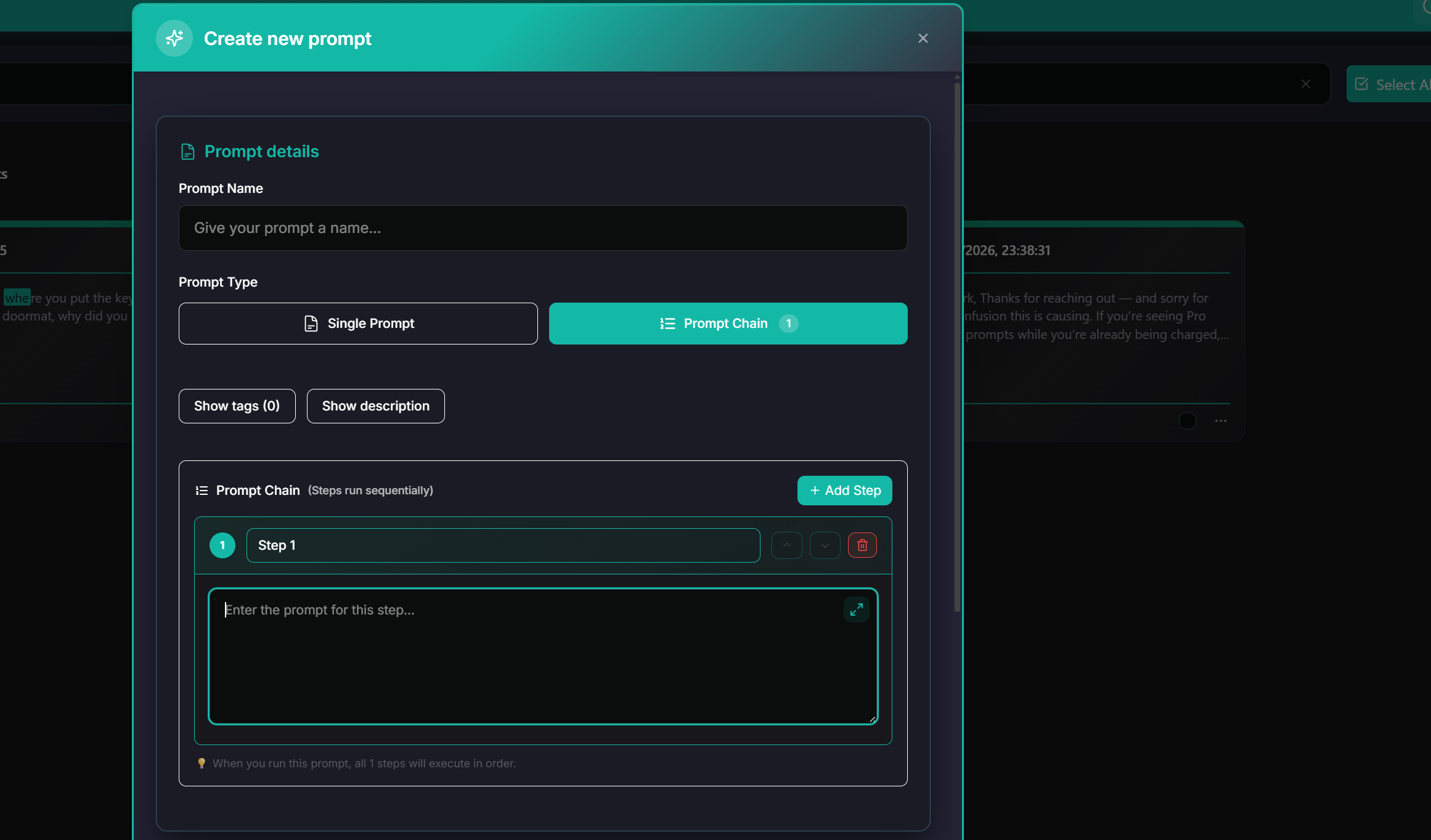
Single prompt or chain — chosen when you create the prompt, not bolted on afterwards.
Worth mentioning: chains reward restraint. A three-step chain you run weekly is worth ten times a nine-step chain you built once to prove it could be done.
Prompt management best practices
- Name prompts by outcome, not by content. "Client update email" beats "Prompt 4 (good one)". You'll search for what you wanted, not what you wrote.
- Save it the second it works. The window between "that's a great answer" and "what did I type?" is about ninety seconds.
- Variables for what changes, plain text for what doesn't. Turning every noun into a variable makes a form nobody wants to fill in.
- Keep one folder per job, not per client. Clients come and go; the jobs stay the same.
- Mark what's tested. A tested tag separates prompts you've verified from prompts you saved hopefully.
- Review quarterly, prune ruthlessly. A library of 40 prompts you use beats 300 you scroll past.
- Export before you need to. Backups are only ever configured too late.
"Solid productivity booster... organizes prompts... trimming feature particularly useful."
Common prompt management mistakes
- Building the taxonomy first. People design fourteen nested folders before saving a single prompt, then abandon the scheme in week two. Save ten prompts, then let the structure follow what you actually have.
- Storing prompts outside the tool you prompt in. A Notion page full of prompts is a museum. Every retrieval costs a context switch, and context switches are what kill the habit.
- Saving outputs instead of inputs. The answer was good because the prompt was good. Save the prompt.
- Hoarding. A prompt you have never rerun isn't an asset, it's clutter with sentimental value.
- Treating it as a solo problem. If two people on a team write the same task prompt differently, you get two different house styles. Shared, exported prompts are the cheapest style guide there is.
What to look for in a prompt management tool
There are good options in this category, and they solve overlapping problems differently. Superpower ChatGPT is the veteran, with a deep toolset and a prompt manager that supports variables. ChatGPT Toolbox covers more AI platforms than we do, Gemini included, and ships an enterprise tier. Both are worth a look — based on our last check of their published feature lists, so confirm the current details on their own sites.
Whichever you land on, these are the criteria that actually predict whether you'll still be using it in six months:
- Retrieval inside the composer. If inserting a prompt needs a second window, the tool loses to your memory.
- Real templating. Not just placeholders — typed fields, defaults, and optional values.
- Automatic capture. Manual saving is a habit; automatic capture is a system.
- Export you control. JSON or CSV, on demand, without a support ticket.
- Local-first storage. Prompts contain client names, strategy, and unreleased work. AI Workspace Pro keeps them on your machine with no telemetry, and encrypted vaults for the sensitive ones.
- Cross-platform coverage. A prompt written for ChatGPT usually works in Claude and Grok too; your library shouldn't be trapped in one of them.
For a wider view of the category, see our rundown of the best ChatGPT Chrome extensions, and if budget is the deciding factor, we published the three-year cost math for all three tools.
Frequently asked questions
What is prompt management?
Prompt management is the practice of capturing, organizing, templating, retrieving, and maintaining the prompts you reuse. It's the operational layer that sits around prompt writing — storage, structure, variables, fast insertion, and pruning — so a prompt that worked once keeps working without being rewritten from memory.
How is prompt management different from prompt engineering?
Prompt engineering is about writing a single prompt well: phrasing, structure, examples, constraints. Prompt management is about everything that happens to that prompt afterwards. You can be excellent at the first and still lose an hour a week to the second.
Does ChatGPT have built-in prompt management?
Not in any complete sense. There's no native way to save a prompt with tags, turn it into a template with variables, and reinsert it with a keystroke. Most people improvise with a notes app or a doc, which is exactly how prompts end up scattered. A Chrome extension adds the missing layer directly inside the ChatGPT interface.
How many prompts should I keep?
Fewer than you think. Most people's real working set is 20 to 40 prompts; the rest is archive. I keep a couple of hundred saved, but the ones that get used weekly would fit on a single screen — which is why pinning and favorites matter more than capacity.
Can I share a prompt library with my team?
Yes — export the library to JSON or CSV and your colleagues import the same file. It's a practical way to standardize output quality across a team, since everyone is then working from identical instructions rather than their own remembered version.
Are my saved prompts private?
In AI Workspace Pro they're stored locally on your device with no telemetry, and sensitive ones can live in an AES-256 encrypted vault. That matters more than it sounds: prompts routinely contain client names, internal strategy, and unpublished work.
Where to go from here
If you take one thing from this page, make it stage four. Capture and structure feel productive, which is why people spend their weekend on folder schemes. But the library only earns its keep at the moment you need a prompt and it's already in the box, one keystroke away.
Next steps, depending on where you are: build your first prompt library if you're starting from scratch, see prompts in a real end-to-end workflow if you want worked examples, or read the guide to ChatGPT workspaces if your conversations need the same treatment your prompts just got.
Put your prompts where you use them
Prompt library, typed templates, chains, and one-keystroke insertion — inside ChatGPT, Claude, and Grok. Free to start.
Try AI Workspace Pro freeReady to upgrade your workflow?
Join thousands of power users who trust AI Workspace to organize their prompts and conversations securely.
Install for Free