A professional ChatGPT text highlighter for serious AI work
AI Workspace helps consultants, researchers, operators, and growth teams highlight important text, navigate faster, and keep critical context visible across ChatGPT, Claude, and Grok.
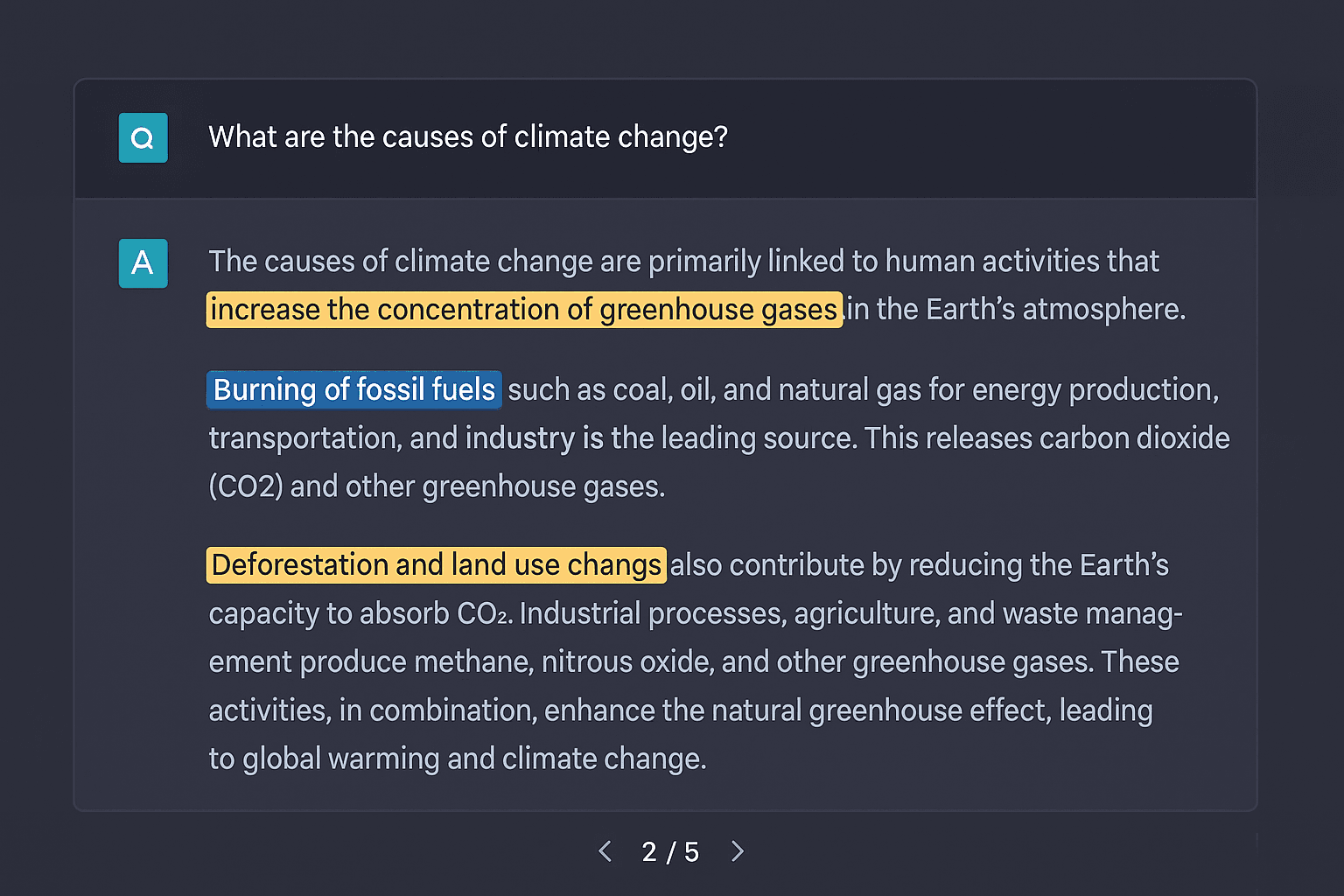
Highlight Anything, Anywhere
Save important text in your AI conversations and return to it instantly with professional highlight states and fast navigation controls.
AI chats get valuable fast, then unreadable even faster
Long ChatGPT threads often contain strong analysis, useful answers, and decisions worth keeping, but that value quickly disappears inside follow-up prompts, revisions, and side paths.
For professional users, that means slower delivery, weaker handoffs, and unnecessary rework. Good output is not enough if the important parts are hard to recover when you need them.
A cleaner way to work inside long AI conversations
The highlighting system is designed to do more than add color. It preserves important context, improves navigation, and gives professional users a more reliable way to work inside long AI conversations.
Persistent highlights
Mark important answers once and keep them available the next time you open the conversation.
Navigation toolbar
Jump between every saved highlight with a clear counter, previous/next controls, and a fast clear-all action.
Two ways to capture
Use Ctrl+Shift+H for speed or the context menu when you prefer a mouse-first workflow.
Built for long threads
Reduce the time spent scrolling through large conversations and bring key sections back into focus immediately.
Works with thread trimming
Combine highlights with AI Workspace trimming tools to keep heavy chats readable without losing important context.
Local and privacy-first
The feature runs inside your browser workflow, so you can organize conversations without adding friction to your process.
Save the right information in three quick steps
The workflow is intentionally lightweight: no extra dashboard, no manual note-taking, and no context switching away from the AI tool your team is already using for research, delivery, or daily execution.
Select any important passage
Highlight key prompts, requirements, code snippets, research findings, or action items directly inside ChatGPT, Claude, or Grok.
Save it in one action
Press Ctrl+Shift+H or use the context menu. AI Workspace stores the highlight and keeps it attached to the conversation.
Navigate without re-reading
Use the bottom toolbar to move between highlights, keep track of your position, and return to the right section instantly.
Professional visual feedback from first highlight to final review
The feature is built to feel native and dependable: subtle when you are reading, clear when you are navigating, and fast when you need to return to the exact passage that matters.
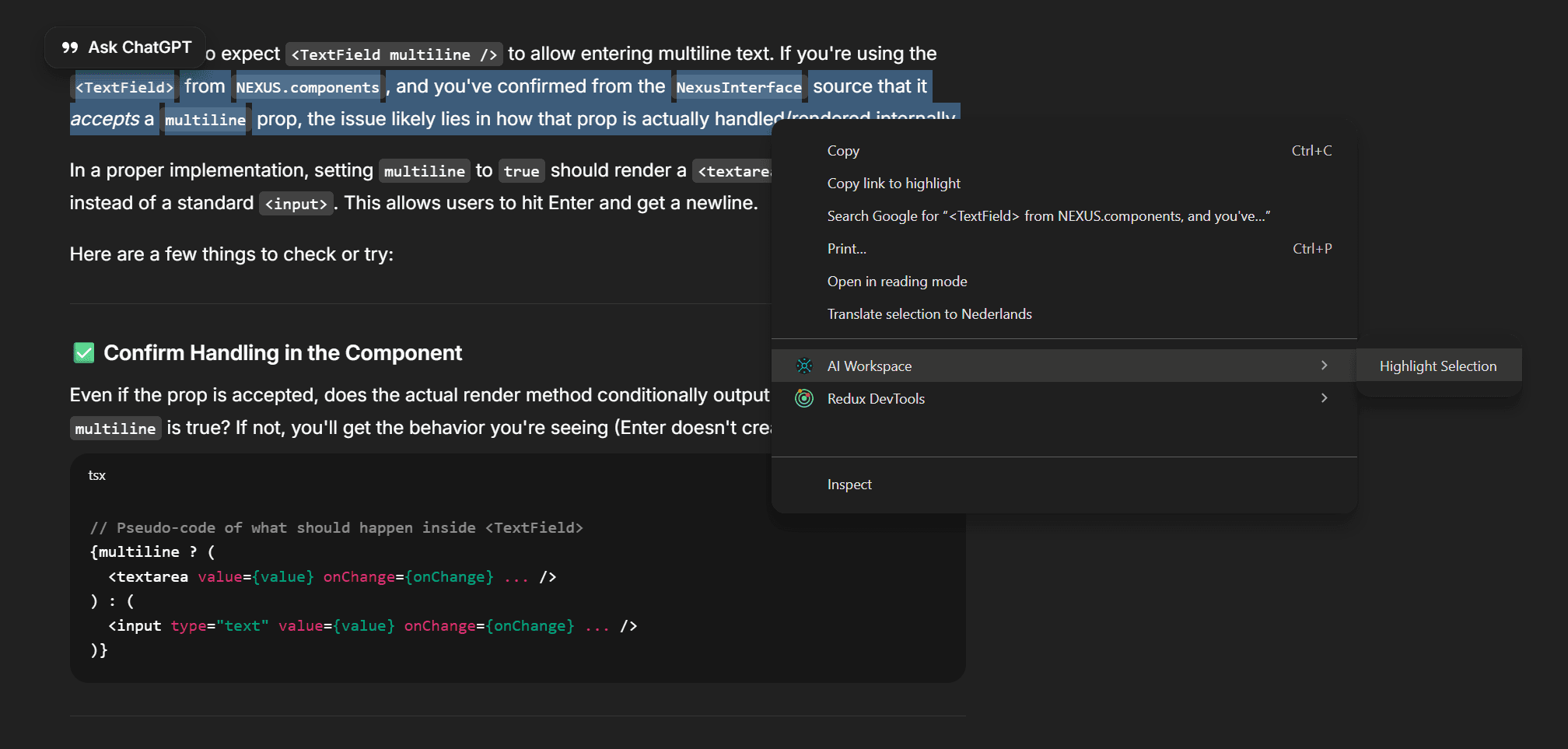
Highlight creation in context
Select text and save it instantly without breaking your flow. The interaction stays inside the conversation instead of moving you into another tool.
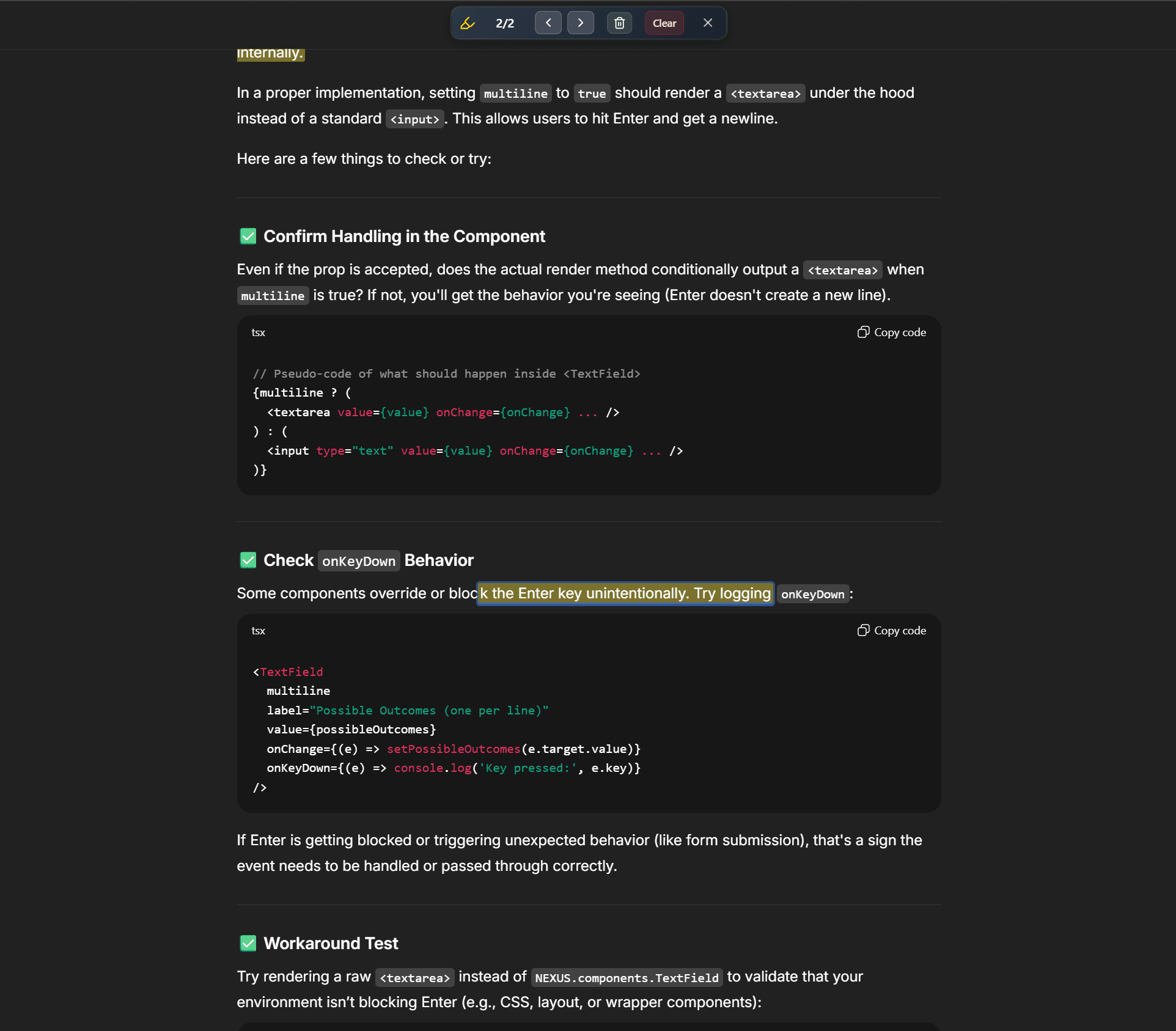
Bottom navigation toolbar
See your current position, move back and forward, and clear highlights when the task is finished.

Clear active and inactive states
Subtle yellow for passive reading, stronger blue styling for the active highlight you are currently reviewing.
Highlights that stay useful after the first session
This feature is valuable because it keeps working after the moment you create the highlight. It is designed for real usage across ongoing conversations, not just a one-time annotation.
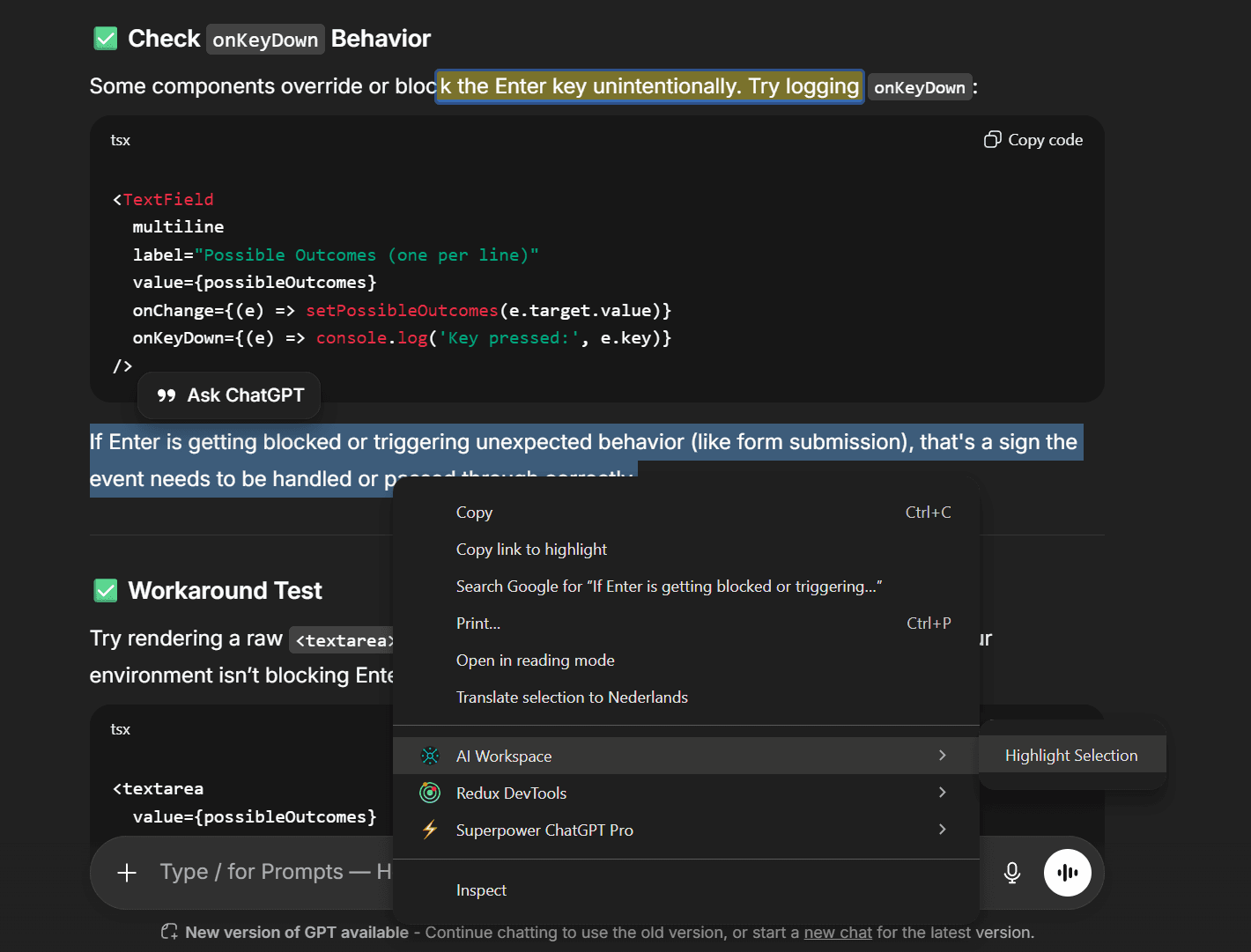
Ctrl+Shift+H
Fastest option for heavy users who capture important text all day.
AI Workspace → Highlight Selection
Clear mouse-based access for users who prefer discoverable UI actions.
Built for real work, not just visual markup
Text highlighting becomes more valuable as conversations become longer, more collaborative, and more operational across teams.
Research and learning
Capture the exact explanations, facts, or examples you want to revisit later instead of rescanning the full chat.
Project management
Mark requirements, decisions, blockers, and next steps during planning sessions so nothing disappears inside a long thread.
Content creation
Save strong hooks, outlines, and campaign ideas while brainstorming, then jump back to them when you start producing.
Technical problem solving
Keep the most relevant fixes, logs, and code snippets visible during debugging sessions that span dozens of messages.
Built for teams that turn AI output into actual deliverables
This is not just a reading aid. It is a practical ChatGPT text highlighter for people who need to retain decisions, findings, instructions, and approved language during serious work.
Agencies and consultants
Keep client requirements, approved messaging, and strategic recommendations easy to revisit during long delivery conversations.
Research and analysis teams
Mark the strongest findings, supporting evidence, and comparison points so teams can move from exploration to synthesis faster.
Operations and project leads
Capture action items, process decisions, and working assumptions without letting them disappear into a large AI thread.
Content and growth teams
Save winning hooks, campaign angles, outlines, and editorial notes while reviewing ideas with AI across multiple iterations.
Frequently asked questions about the ChatGPT text highlighter
Clear answers for teams evaluating AI Workspace as a practical way to organize long AI conversations.
What is the best ChatGPT text highlighter for long conversations?
AI Workspace is built specifically for long AI conversations. It lets you highlight important text in ChatGPT, navigate between highlights, and keep critical context accessible instead of buried in the thread.
Does this ChatGPT highlighter also work on Claude and Grok?
Yes. AI Workspace text highlighting works across ChatGPT, Claude, and Grok, so teams can keep a consistent workflow even when they switch between AI tools.
Do my highlights stay saved after I refresh the page?
Yes. Highlights are designed to persist across page refreshes, browser restarts, extension updates, and dynamic content changes, which makes them practical for real ongoing work.
Can teams use AI Workspace for client work, research, or operations?
Yes. Teams use AI Workspace to mark requirements, decisions, code snippets, insights, and action items inside long AI conversations so client delivery and internal workflows stay organized.
Why AI Workspace?
The highlighting feature is part of a broader workspace designed to make AI tools easier to operate professionally every day.
Works directly in ChatGPT, Claude, and Grok
No account required to start using the extension
Professional visual states for active and inactive highlights
Fast workflow for both keyboard users and mouse users
Start highlighting the parts that actually matter
Install AI Workspace and give your team a faster, more reliable way to review long AI conversations, preserve key decisions, and work with confidence.
Free forever • No credit card required • Ready in seconds