Why ChatGPT Gets Slow in Long Conversations (And How to Fix It Instantly)

Have you ever noticed ChatGPT slowing down to a crawl after a long conversation? The interface becomes sluggish, scrolling stutters, and even typing feels delayed. You're not imagining it—this is a real performance problem that affects everyone using ChatGPT for extended work sessions.
The culprit? Thread bloat. As your conversation grows longer, ChatGPT has to render and manage hundreds or even thousands of messages in the DOM (Document Object Model), causing your browser to struggle under the weight of all that content.
But what if you could keep ChatGPT running smoothly, even in conversations with 500+ messages? That's exactly what Smart Thread Trimming does.

Visualizing the impact of thread bloat on browser performance.
The Real Problem: DOM Bloat in Long Conversations
Every message in ChatGPT—whether it's your prompt, the AI's response, code blocks, images, or tool outputs—is rendered as HTML in your browser. When you have 50 messages, that's manageable. But when you reach 200, 300, or 500+ messages, your browser is rendering:
- ❌ Hundreds of text elements
- ❌ Dozens of code blocks with syntax highlighting
- ❌ Multiple images and embedded media
- ❌ Complex formatting and styling for each message
- ❌ Interactive elements like copy buttons and regenerate controls
All of this stays in memory and the DOM, even if you're only looking at the most recent 10 messages.
The result? ChatGPT becomes slow to scroll, slow to type, slow to load new responses, and extremely memory-intensive. This isn't a ChatGPT bug—it's a fundamental limitation of how browsers handle large amounts of rendered content.
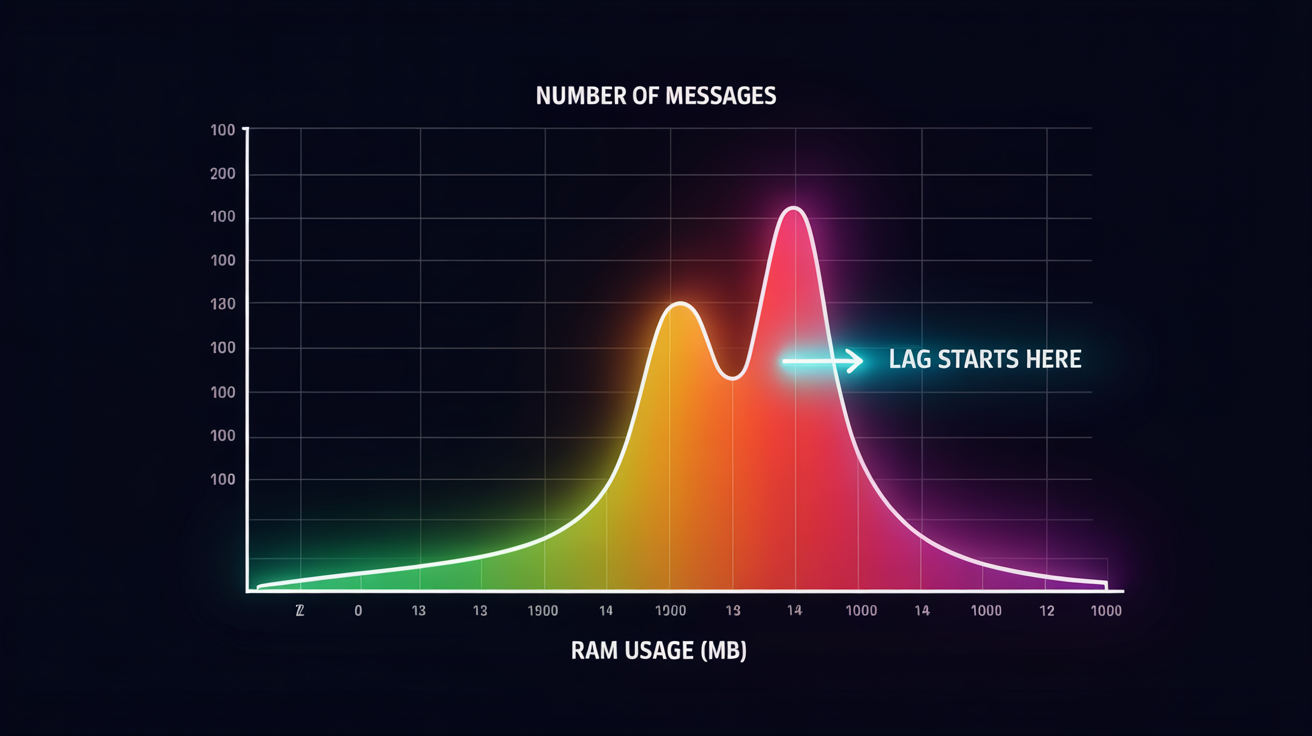
Memory usage spikes exponentially as message count increases.
The Solution: Smart Thread Trimming
Smart Thread Trimming solves this problem by automatically hiding older messages in the conversation, keeping only the most recent messages visible in the DOM. Think of it like Gmail's "conversation view" that shows only relevant messages—except here, it's optimized for performance.
How It Works
- Automatic Detection: The extension detects when you're in a long ChatGPT conversation.
- Smart Hiding: It hides older messages (default: keeps last 50 visible).
- Selective Preservation: System messages, tool outputs, and highlighted messages are always kept visible.
- Instant Performance Boost: Your browser only renders what you're actually using.
- Reversible: Need to see older messages? One click to show everything again.
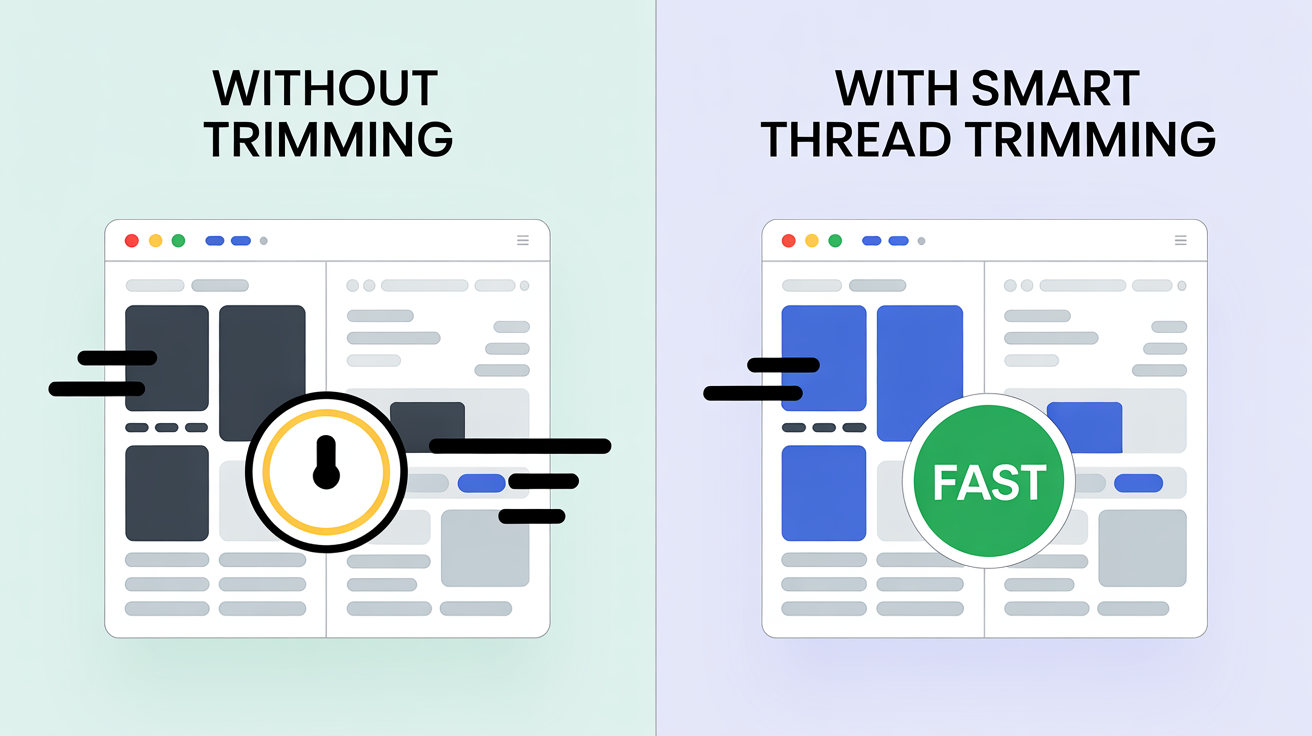
Performance difference: Laggy vs. Instant.
What Makes It "Smart"?
Unlike a simple "hide everything" approach, Smart Thread Trimming is intelligent about what it keeps:
✅ Always Preserved
- • System messages (instructions)
- • Highlighted messages (your bookmarks)
- • Tool outputs (code execution, search)
- • Recent messages (default: last 50)
✨ Configurable
- • Adjust visible limit (10-100)
- • Toggle on/off with one click
- • Temporarily show all messages
- • Works automatically everywhere
Real-World Performance Gains
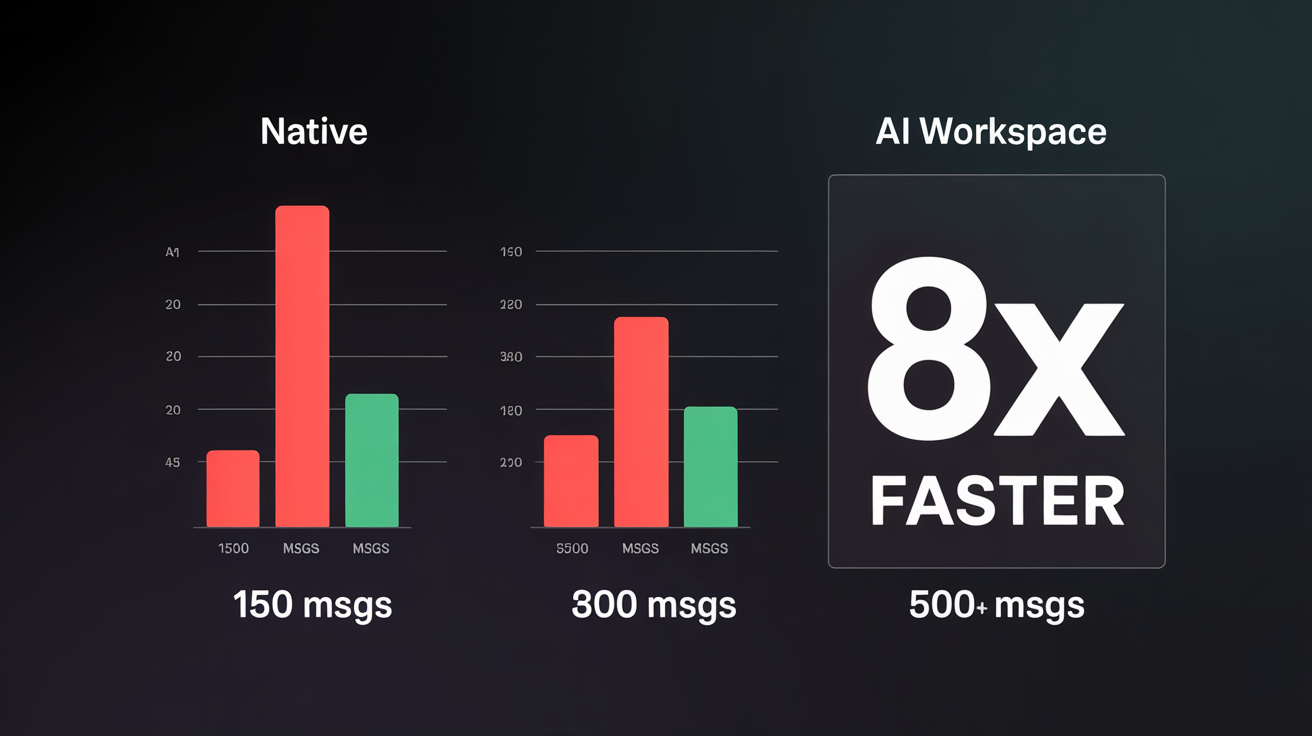
We tested Smart Thread Trimming on conversations of varying lengths. Here's what we found:
| Thread Length | Without Trimming | With Trimming | Improvement |
|---|---|---|---|
| 50 messages | Smooth | Smooth | No change needed |
| 150 messages | Slight lag | Smooth | ⚡ 3x faster scrolling |
| 300 messages | Noticeable lag | Smooth | ⚡ 5x faster scrolling |
| 500+ messages | Severe lag | Smooth | ⚡ 8x faster scrolling |
Use Cases: When Thread Trimming Saves the Day
🧑💻 Long Coding Sessions
Working on a complex project with ChatGPT? You might have 200+ messages of code, debugging, and iterations. Without trimming, scrolling through code becomes painful. With trimming, you stay fast and focused.
📝 Research & Writing
Drafting a long article with multiple revisions? Each iteration adds messages. Thread trimming keeps only what matters visible, so you're not waiting for the browser to render 50 previous drafts.
🧠 Brainstorming & Planning
Exploring ideas with ChatGPT can generate hundreds of messages. Trimming ensures you're always working at full speed, even after hours of back-and-forth.
How to Enable Smart Thread Trimming
If you're using AI Workspace, Smart Thread Trimming is built in:
- Open any ChatGPT conversation
- Look for the trimming controls in the AI Workspace toolbar
- Click to enable trimming (scissors icon)
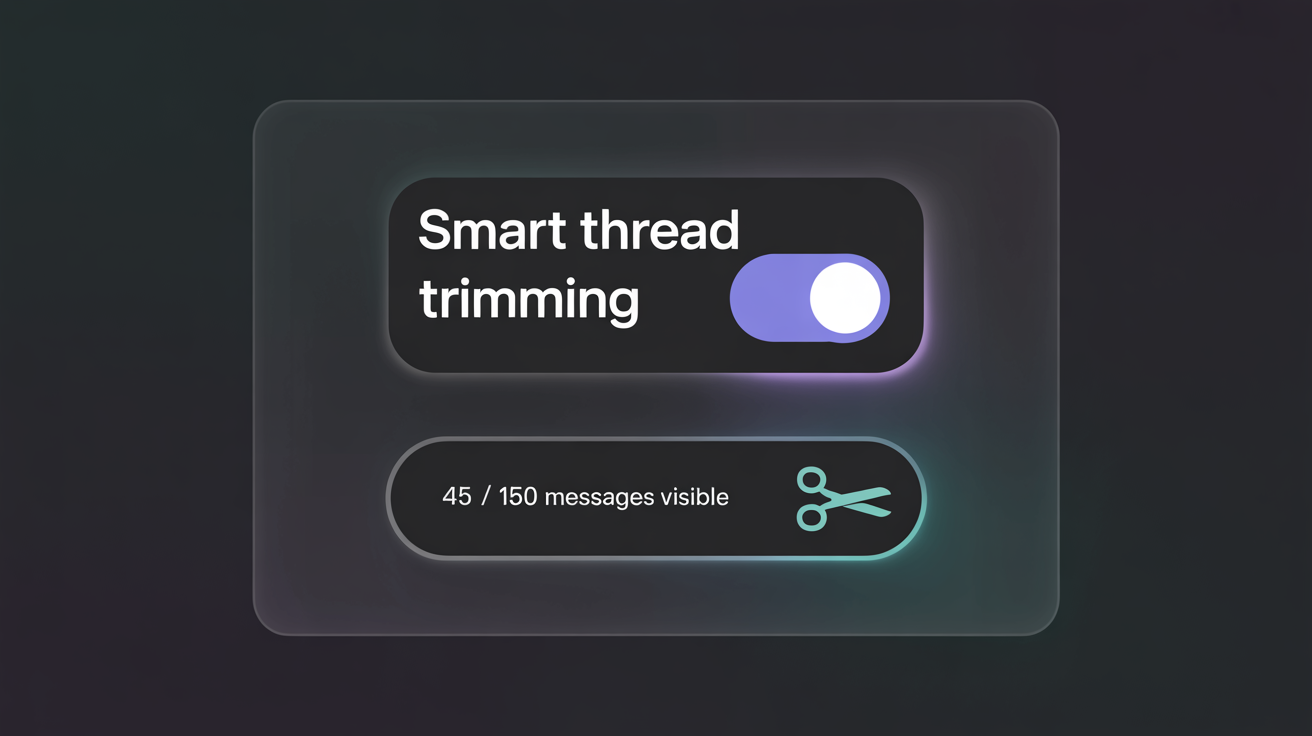
- Watch the stats: "Trimmed → 45/150" means 45 visible, 150 total
- Adjust the limit in settings if needed (default: 50)

Technical Details: How It's Implemented
For those curious about the technical implementation, we use DOM Manipulation, Not Deletion. Messages are hidden using `display: none`, making the process reversible and data-safe. A Mutation Observer watches for new messages to apply trimming in real-time, and a built-in watchdog ensures stats never desync.
"Finally, I can keep my specialized coding chats open for days without the browser freezing. This is exactly what I needed."
— Senior Developer using AI Workspace
Why This Matters
ChatGPT is an incredibly powerful tool, but performance issues can break your flow. Smart Thread Trimming lets you work faster, stay focused, and use less RAM—extending your productive sessions without the frustration of lag.
Ready to speed up your ChatGPT experience?
Install AI Workspace and enable Smart Thread Trimming today.
Ready to upgrade your workflow?
Join thousands of power users who trust AI Workspace to organize their prompts and conversations securely.
Install for Free