Tangent View: See How Your ChatGPT Conversations Actually Branch
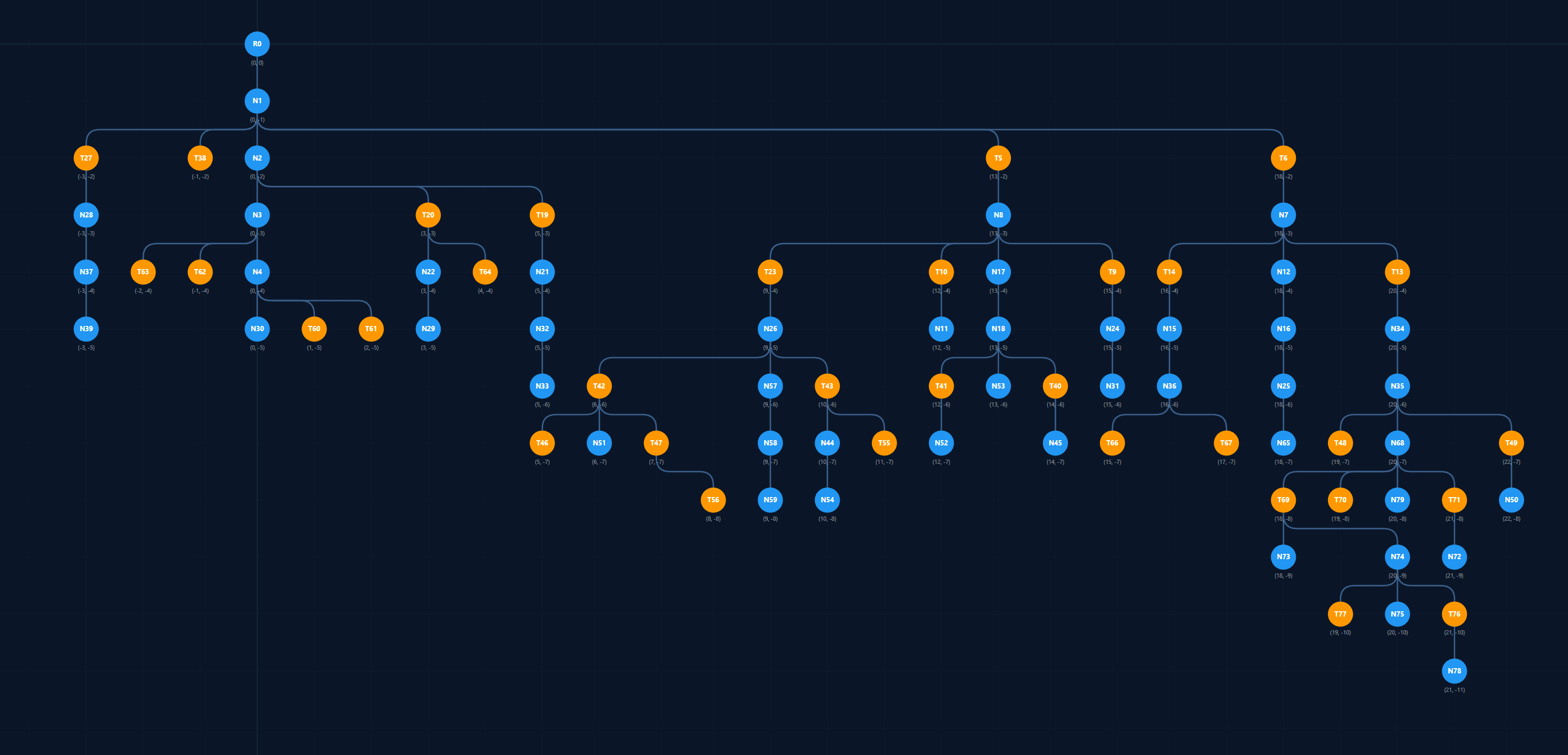
ChatGPT conversations rarely stay linear. You try one prompt, edit an earlier message, regenerate a response, or branch into a new chat. A few hours later, you have multiple versions of the same idea spread across separate conversations, and the original flow is hard to reconstruct.
Tangent View solves exactly that problem. It turns your branching ChatGPT history into an interactive visual graph inside AI Workspace, so you can see where a detour started, follow every branch, inspect any node, and jump back to the exact moment a new idea began.
Why Tangent View Matters
Without a branch map
- • Branched chats look like unrelated conversations
- • You lose the moment a better idea split off
- • Comparing prompt variations becomes slow and manual
- • Useful abandoned branches stay buried
With Tangent View
- • See the full conversation tree in one place
- • Inspect paths before reopening the right chat
- • Compare alternate branches without losing context
- • Navigate back to the exact branching point instantly
What Tangent View Is
Tangent View is a dedicated branching graph for ChatGPT conversations. It detects when a conversation splits, especially when you use Branch in new chat, and visualizes those relationships as a connected tree.
The original conversation becomes the root, and every alternate path becomes a visible tangent lane. Instead of treating each branched chat as an isolated tab, AI Workspace shows them as one structured exploration space.
Questions it answers immediately
- →Where did this idea start?
- →Which prompt variation produced the best result?
- →What changed between this branch and the main path?
- →Which branch should I reopen to continue the right line of thinking?
Why This Matters for Real AI Work
Branching is one of the most powerful ways to work with AI, but it is also one of the easiest ways to lose context. A small prompt tweak can send a conversation in a completely different direction. Without a map, those branches become hard to compare and even harder to reuse.
Tangent View turns branching from a hidden side effect into a deliberate workflow. It keeps the full history of an idea visible, helps you revisit abandoned paths, and makes it easier to understand how a final result evolved over time.
What You Can Do Inside Tangent View
1. Visualize the full branching structure
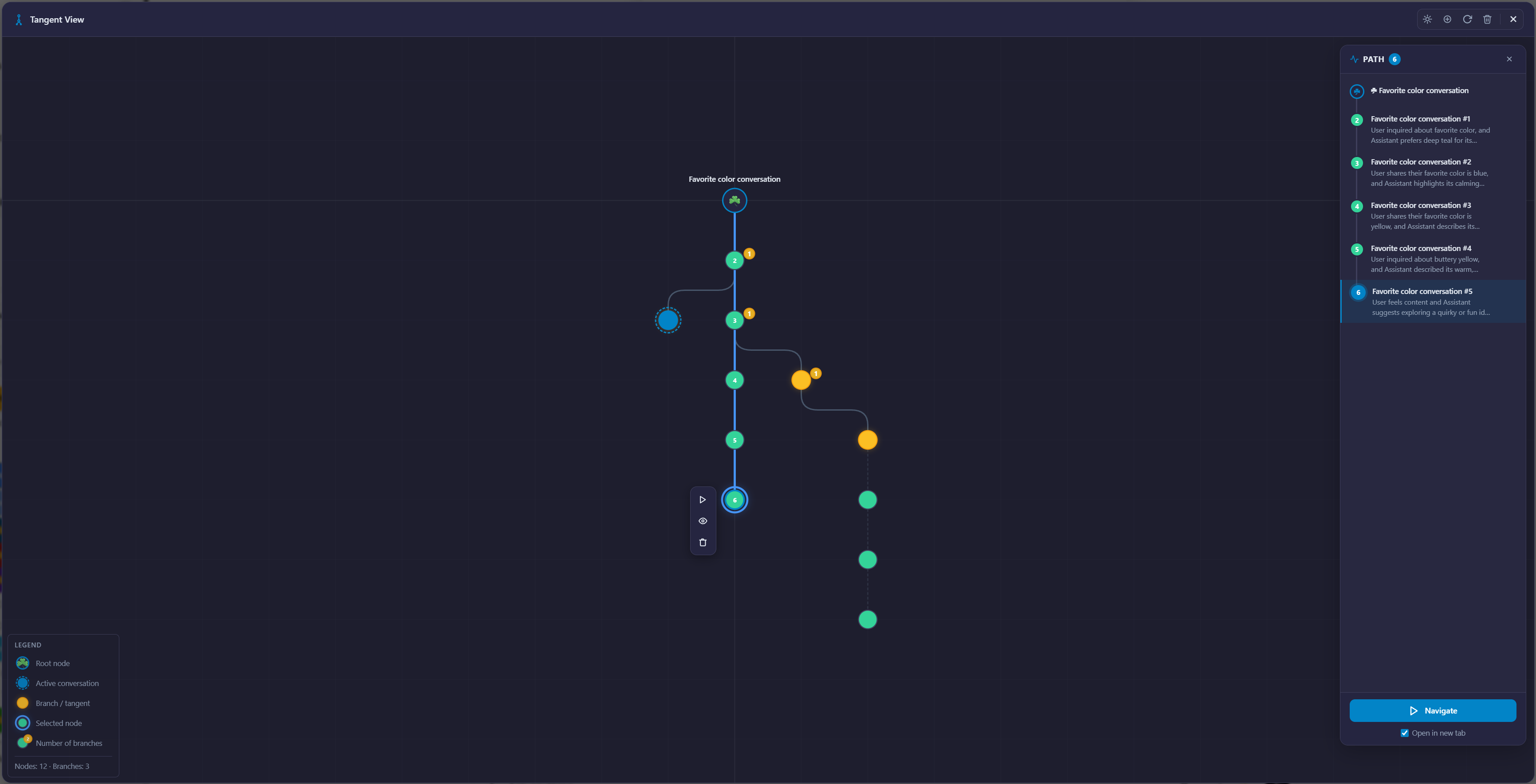
Tangent View renders your conversation as an interactive graph rather than a flat list. The main path stays readable while branches fan outward in a compact metro-style layout designed to remain stable and predictable as the tree grows.
2. Open it directly from ChatGPT
You can launch Tangent View from the button injected into the ChatGPT header, right next to the model selector. There is also a keyboard shortcut: Ctrl/Cmd + Shift + Y.
3. Hover for summaries, hold Shift for full content
Every node can show a concise summary on hover so you can scan the tree quickly. When you want more detail, hold Shift to reveal the full turn content. That makes the graph useful for both fast orientation and close inspection.
4. Follow the exact path to any selected node
Clicking a node opens a Path panel that shows the full route from the root conversation to the selected branch. Each step is numbered, so you can understand not just where you are, but how you got there.
5. Navigate, preview, or clean up from the node toolbar
Selecting a node reveals a floating action toolbar with quick actions to navigate directly to that chat, preview the node content in a focused dialog, or delete the node and its subtree from the Tangent graph.
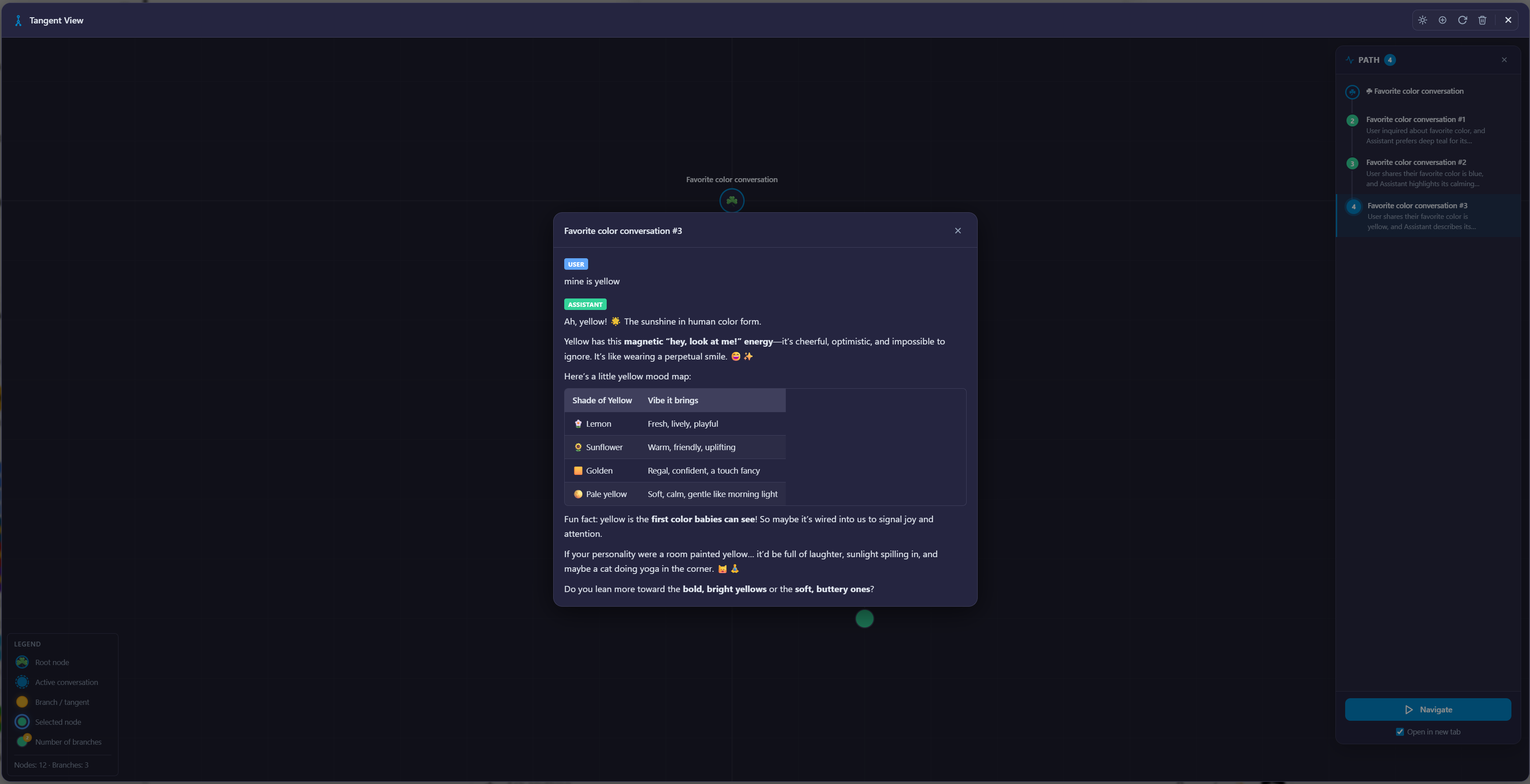
6. Review full turn content without leaving the graph
For deeper inspection, Tangent View includes a scrollable preview dialog that shows the full user and assistant content for a selected node, including markdown formatting. You can verify a branch before jumping away from the graph.
7. Stay oriented with clear visual states
A built-in legend and distinct node states help you quickly identify the root node, the active conversation, branch nodes, the selected node, and nodes with multiple outgoing branches. Even larger graphs stay readable at a glance.
For writers and content teams
Compare alternate hooks, structures, titles, and angles without losing track of which branch produced the strongest draft.
For developers and technical users
Evaluate multiple implementation paths, debugging strategies, and prompt variations while keeping the full reasoning chain visible.
For researchers and analysts
Branch into competing hypotheses, return to earlier decision points, and preserve the context behind each line of inquiry.
For prompt engineers and power users
See how small prompt changes affect outcomes across branches, then jump back into the exact path you want to continue.
What Makes It Different From a Normal Chat List
A normal sidebar can tell you which chats exist. Tangent View tells you how they relate. Once conversations start branching, that relationship becomes more valuable than the chat list itself.
Workspaces, favorites, tags, and folders help you manage conversations. Tangent View helps you understand the decision tree inside them. That difference is what makes it useful for serious iterative work.
Under the Hood
Tangent View is not just drawing lines between random nodes. It is built to detect branch relationships across chats, persist them locally, and render them in a stable graph that survives reloads and browser restarts.
- Automatic detection of cross-chat branches created via ChatGPT's branching flow
- Local persistence in IndexedDB so the graph remains available across sessions
- Stable metro-style layout with compact branch routing
- Cached AI summaries with TTL to avoid redundant work
- Pan and zoom support for larger graphs
- Persisted light and dark theme preferences
- Free-tier gating with clear upgrade messaging for heavy usage
How to Use Tangent View
- Open a ChatGPT conversation that contains branches, or create one using Branch in new chat.
- Click the Tangent View button in the header, or press
Ctrl/Cmd + Shift + Y. - Hover over nodes to scan summaries quickly.
- Hold Shift when you want the full turn content.
- Click a node to open the Path panel and focus that branch.
- Use the node toolbar to navigate, preview, or clean up the graph.
Branching finally becomes visible
If you use ChatGPT to think, iterate, and explore, Tangent View gives your conversation structure a clear visual shape so you can keep building from the exact branch that matters.
Ready to upgrade your workflow?
Join thousands of power users who trust AI Workspace to organize their prompts and conversations securely.
Install for Free