Smart Conversation Outline: Navigate Long AI Chats Like a Pro
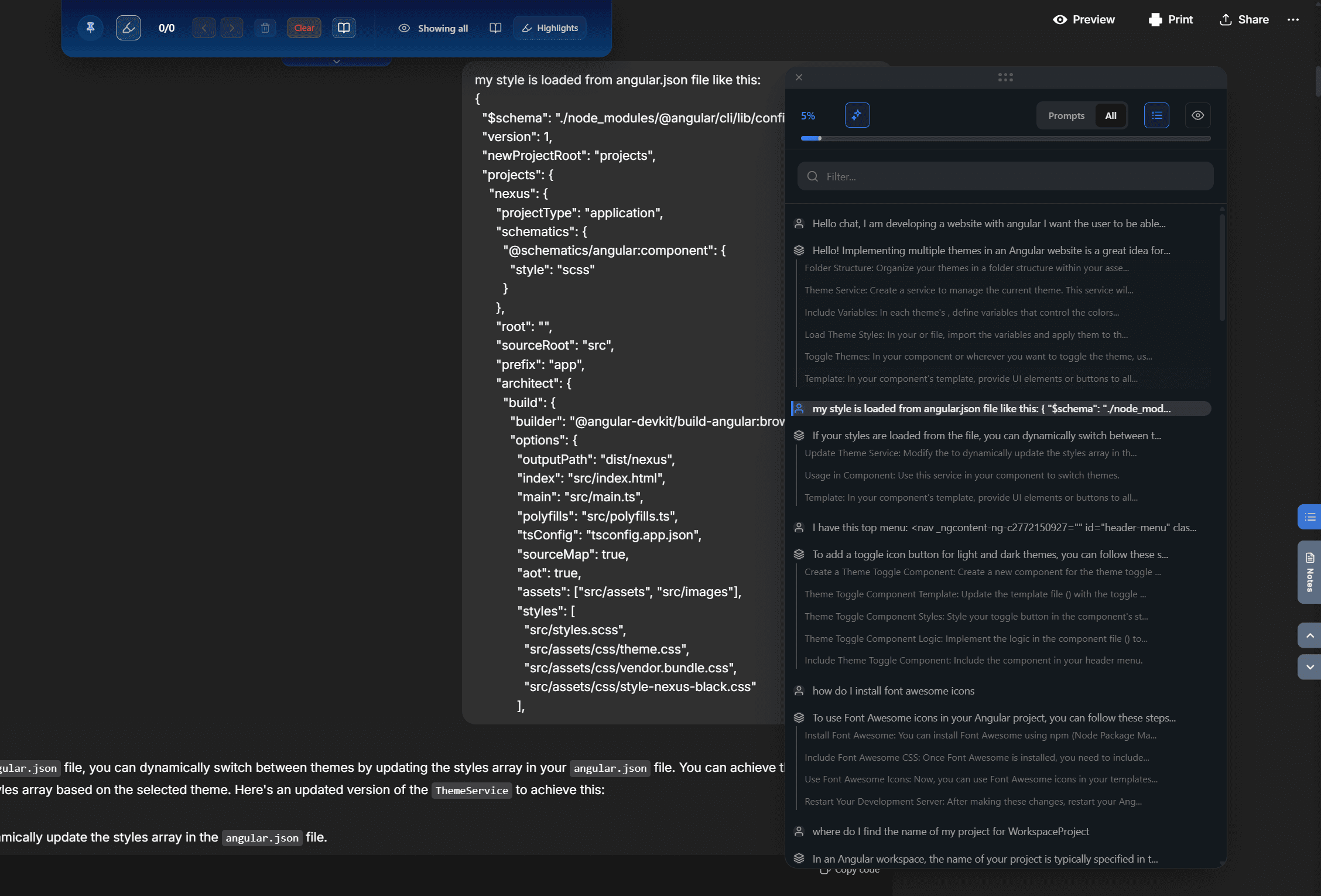
Ever lost an important piece of information buried 50 messages deep in a ChatGPT conversation? Spent minutes scrolling up and down trying to find that code snippet the AI shared earlier? You're not alone. Long AI conversations are notoriously hard to navigate - until now.
Introducing Smart Conversation Outline
The Smart Conversation Outline is a floating sidebar that gives you a visual map of your entire AI conversation. Think of it as a table of contents for your chat - click any message to jump directly to it.
Key Features at a Glance
- 🗺 Visual conversation map - See every user/assistant exchange
- 🎯 One-click jump - Navigate to any message instantly
- 📊 Progress tracking - Real-time scroll position indicator
- 🎨 Smart filtering - View only your questions or AI responses
- 🔍 Instant search - Find specific messages by keyword
- 🖱 Fully draggable - Position it anywhere on your screen
- ⌨ Keyboard shortcuts - Cmd/Ctrl + . to toggle
The Problem It Solves
AI chat sessions can easily grow to 50, 100, or even 200+ exchanges. Native platforms like ChatGPT and Claude offer zero navigation structure - conversations are just endless vertical scrolls.
Without Outline
- Scroll endlessly to find earlier messages
- Lose track of where you are in the conversation
- Waste minutes searching for specific information
- No way to see just your questions or just AI answers
With Smart Outline
- Jump to any message with one click
- Visual progress bar shows your position
- Find messages in seconds with search
- Filter by user-only or assistant-only view
How It Works
1. Open the Outline Panel
Press Cmd/Ctrl + . or click the outline icon in your toolbar. The panel slides in from the right side of your screen.
2. Navigate Your Conversation
The panel displays a hierarchical list of all conversation turns. Click any item to instantly scroll to that exact message with smooth animation.
3. Filter Your View
Use the view mode toggles to show All messages, User Only (just your questions), or Assistant Only (just AI responses).
4. Search for Specific Messages
Type in the search bar to filter the outline in real-time. Perfect for finding that code snippet or specific topic you discussed earlier.
Keyboard Shortcuts
| Action | Shortcut |
|---|---|
| Toggle Panel | Cmd/Ctrl + . |
| Navigate Items | Arrow Up / Down |
| Jump to Selected | Enter |
| Close Panel | Escape |
Platform Support
Smart Conversation Outline works across all major AI platforms: ChatGPT, Claude, Grok, and Gemini.
Get Started
Smart Conversation Outline is available now as part of AI Workspace Pro. Start navigating your AI conversations like a pro today!
Released in version 0.1.61 (January 30, 2026) - Desktop/tablet only
Ready to upgrade your workflow?
Join thousands of power users who trust AI Workspace to organize their prompts and conversations securely.
Install for Free