Master Your ChatGPT Conversations with Smart Highlights
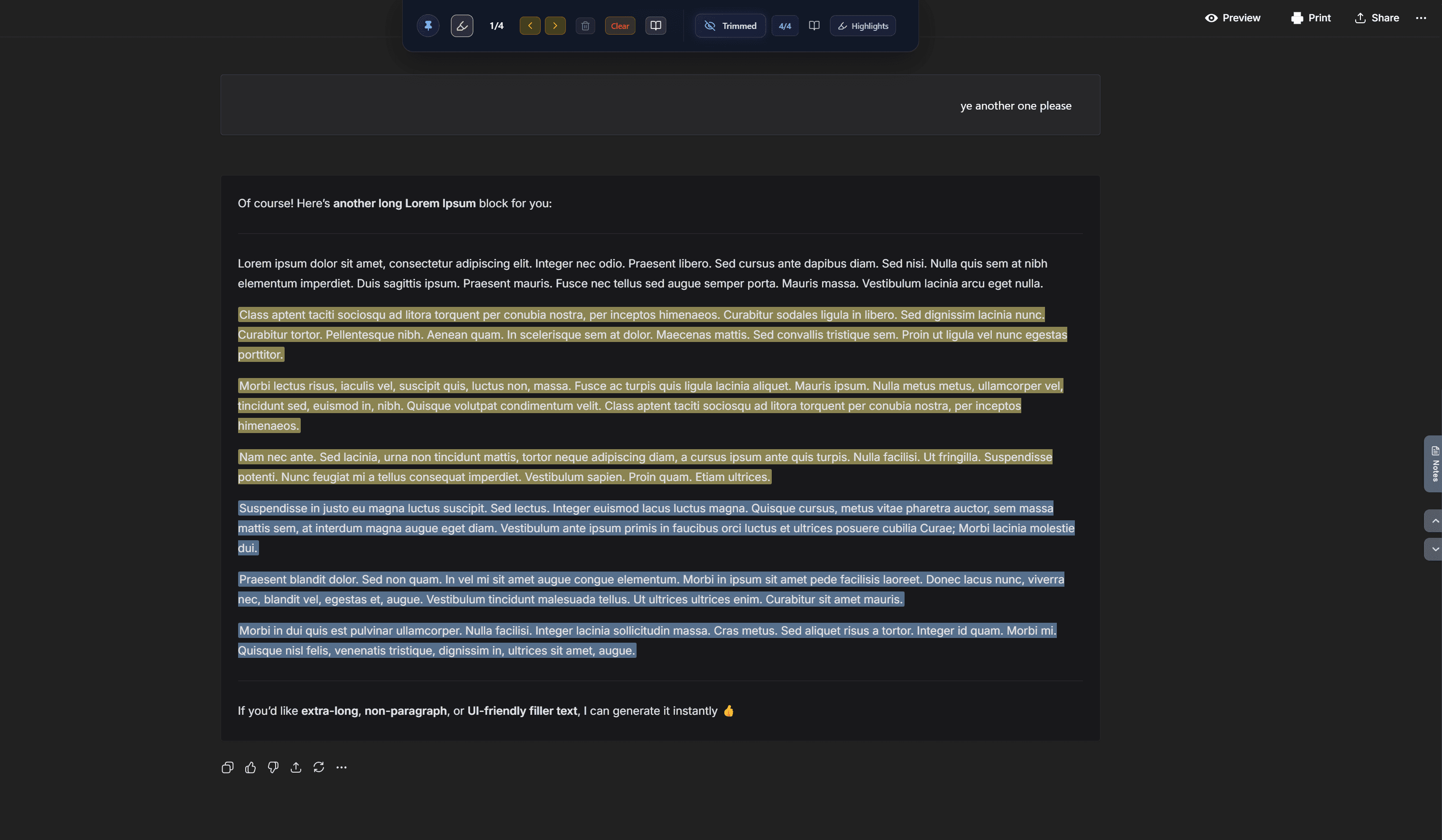
Imagine reading a book and using a highlighter to mark important passages. Now bring that same power to your ChatGPT conversations. Whether it's a brilliant code solution, a creative idea, or an insightful explanation - you can now capture and organize these moments effortlessly.
Watch a complete walkthrough of the highlights feature in action.
What Are Conversation Highlights?
With AI Workspace's Highlights feature, you can:
- 🎯 Mark important text instantly with keyboard shortcuts
- 🎨 Color-code highlights for different purposes
- 📝 Add private notes to remember context
- 🔍 Find any highlight across all conversations in seconds
- 📊 Manage hundreds of highlights from a centralized dashboard
Creating Your First Highlight
The Quick Way: Keyboard Shortcut
- Select the text you want to highlight
- Press Ctrl+Shift+H
- The text is instantly highlighted!
Choose Your Color First
Before highlighting, pick your color from the smart toolbar:
- Look for the highlighter icon 🖊️ at the top of the ChatGPT page
- Click the colored highlighter button to open the color picker
- Select your preferred color from the 7 available options
- Now all new highlights will use this color until you change it
Alternative: Right-Click Menu
- Select the text you want to highlight
- Right-click on the selection
- Choose "Highlight Text" from the menu
- Pick a color and add a note
Available Colors
Choose from 7 distinct colors to organize your highlights:
The Smart Highlights Toolbar
When you're in a conversation with highlights, the smart toolbar appears at the top, offering quick navigation and controls.
Toolbar Features: Color Picker, Highlight Counter, Navigation Arrows, Clear Highlights, and Quick Access to Manager.
The Highlights Management Screen
Access your complete highlights library by clicking the Highlighter icon 🖊️ or pressing Ctrl+Shift+L.
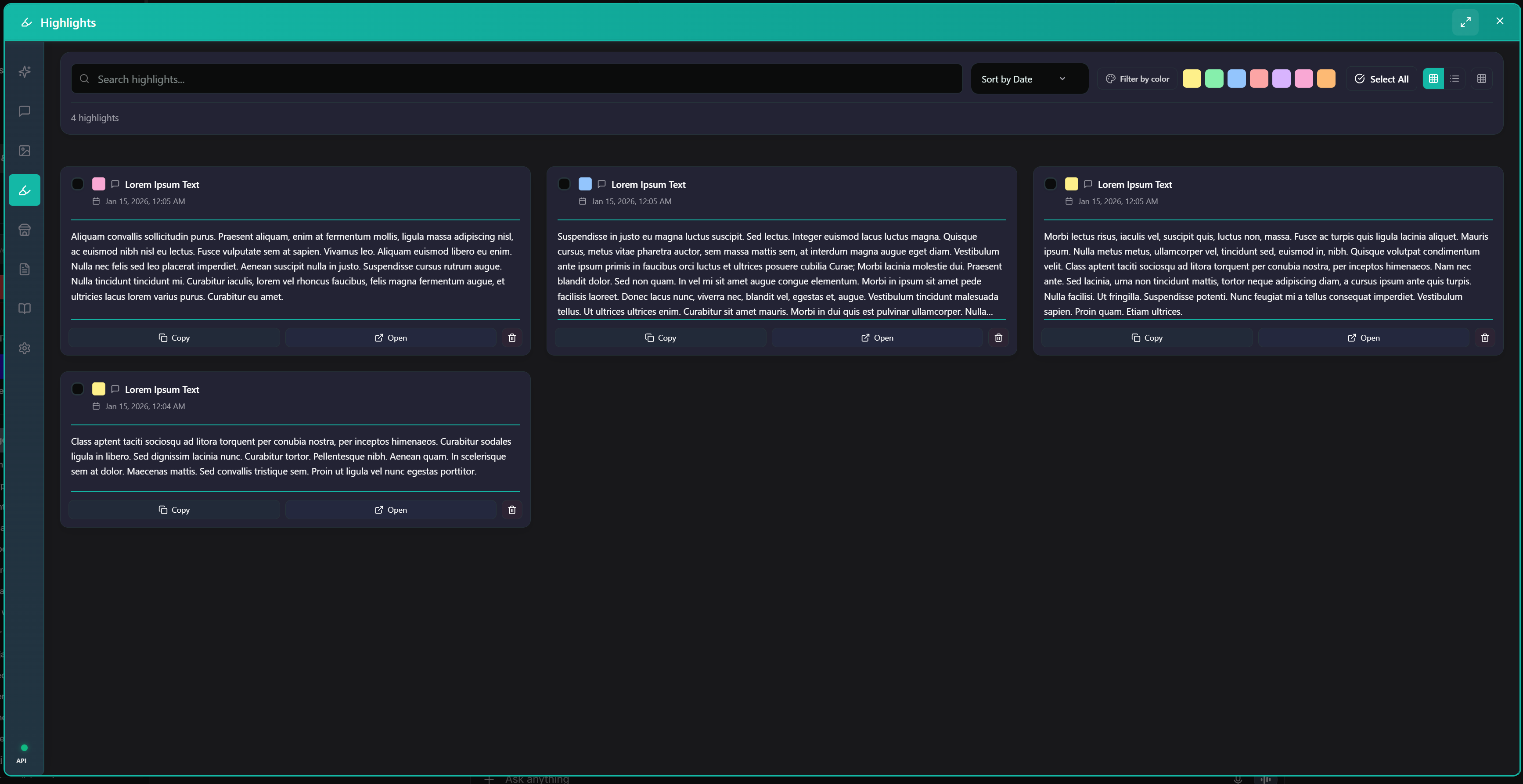
Powerful Search & Filter
Instantly find what you need by filtering based on:
- Filter by Color: Click color badges to filter (e.g., see only "Green" solutions)
- Search Text: Find specific words in highlights or notes
- Conversation: Search by source conversation title
Professional Highlight Cards
Each card is designed for clarity:
- Color Badge: Instant category recognition
- Quick Actions: Copy, Open, or Delete in one click
- Bulk Operations: Select multiple cards to delete in bulk
Real-World Use Cases
Research & Learning
Learning a new framework? Build a searchable knowledge base.
Code Review & Debugging
Create a personal debugging playbook from solved issues.
Project Planning
Turn brainstorming sessions into actionable roadmaps.
Pro Tips
- Develop a System
- Consistency is key. Decide what each color means for you (e.g., Green = Done, Red = Action Required) and stick to it.
- Use Notes Liberally
- Future you will thank present you. Always add context about why you highlighted something or what the next step is.
- Use Color Filters
- Start your day by clicking the Blue filter to find all your pending questions or TODOs.
Keyboard Shortcuts Cheat Sheet
| Action | Windows/Linux | Mac |
|---|---|---|
| Create Highlight | Ctrl+Shift+H |
Cmd+Shift+H |
| Open Manager | Ctrl+Shift+L |
Cmd+Shift+L |
| Next Highlight | Ctrl+Shift+] |
Cmd+Shift+] |
| Prev Highlight | Ctrl+Shift+[ |
Cmd+Shift+[ |
Privacy First
Just like all our features, your highlights are stored locally in your browser. They are never sent to our servers or third parties. Your data remains strictly yours.
Start organizing your AI insights today!
Ready to upgrade your workflow?
Join thousands of power users who trust AI Workspace to organize their prompts and conversations securely.
Install for Free